


WhatsApp Integration Help Guide
The WhatsApp Integration connects your Easy Assist AI chatbot to WhatsApp so customers can message your business and receive automated replies, capture leads, and trigger bookings—similar to your website chatbot experience.
Where to find it:
My Chatbots → (Select a Chatbot) → Integrations → WhatsApp
What WhatsApp Integration does
Lets your chatbot respond to WhatsApp messages
Helps you qualify leads (name/email/phone/message)
Can support Appointments triggers (if enabled)
Keeps your business responsive 24/7
Before you start (requirements)
WhatsApp automation usually requires Meta setup. You’ll typically need:
1) A WhatsApp Business Account
Use WhatsApp Business (recommended), not personal WhatsApp.
2) A Meta Business setup (commonly required)
Depending on your integration type, you may need:
A Meta Business Manager
A connected WhatsApp Business Account (WABA)
A verified or active business/phone number setup (varies by account)
3) Admin access
You must log in with the Meta/Facebook account that has Admin / Full control to the Business assets.
How to connect WhatsApp (step-by-step)
Go to Integrations → WhatsApp
Click WhatsApp Authorization
Log in to Meta/Facebook when prompted
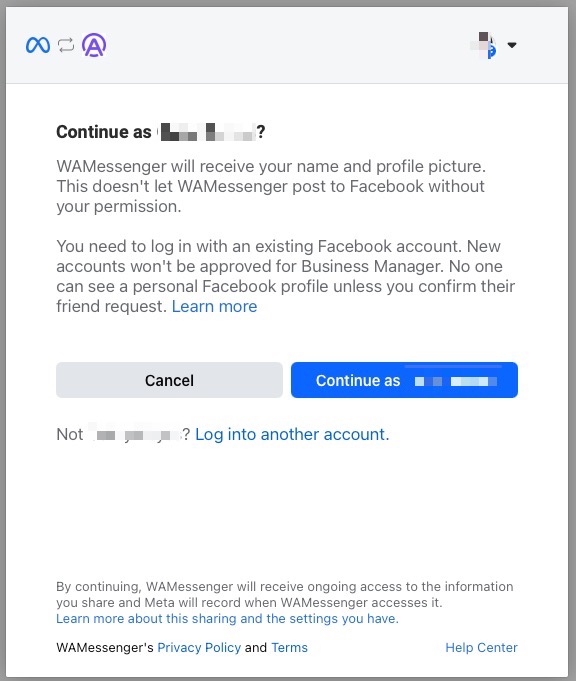
If you are still logged in, you will be prompted to Continue. Click Continue. Otherwise, click Other accounts.
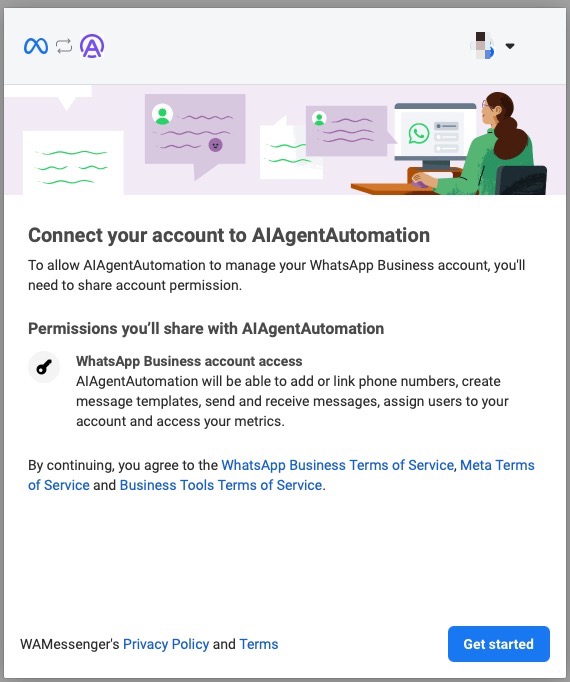
Connect your account to AIAgentAutomation. Click Get started.
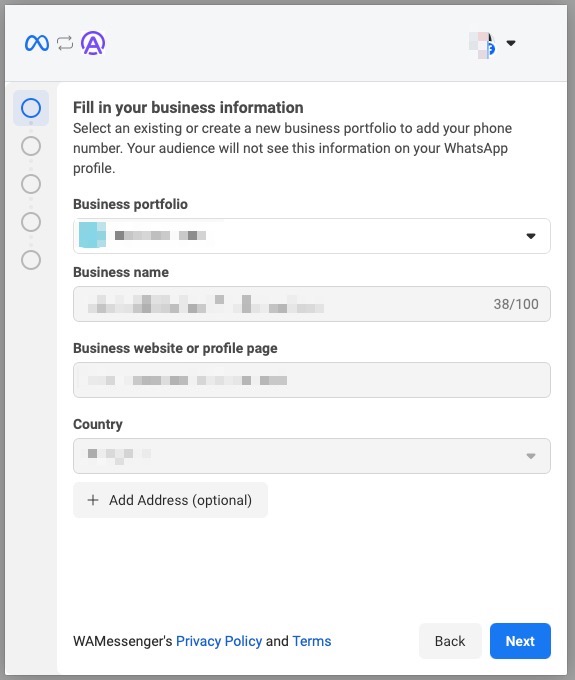
Select an existing or create a new business portfolio to add your phone number. Click Next.
Create or select your WhatsApp Business Account. Click Next.
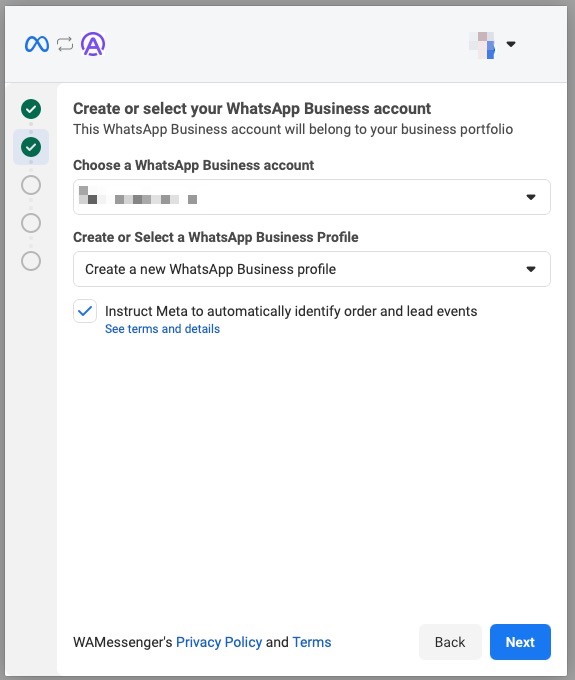
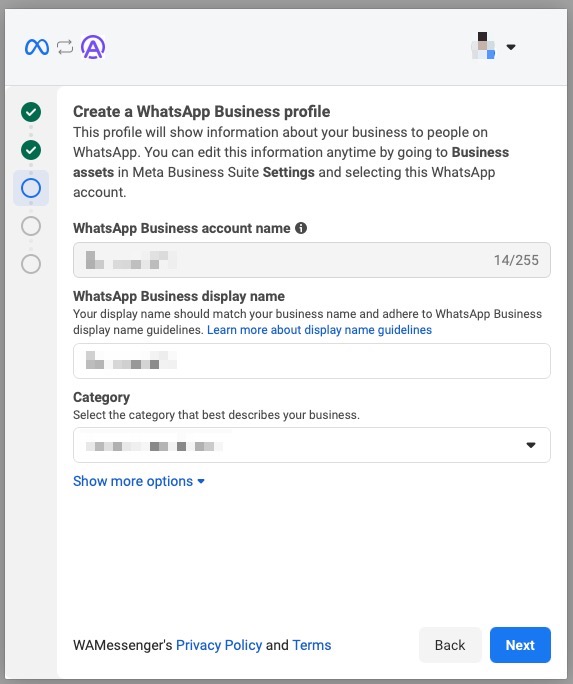
Create a WhatsApp Business Profile. Click Next.
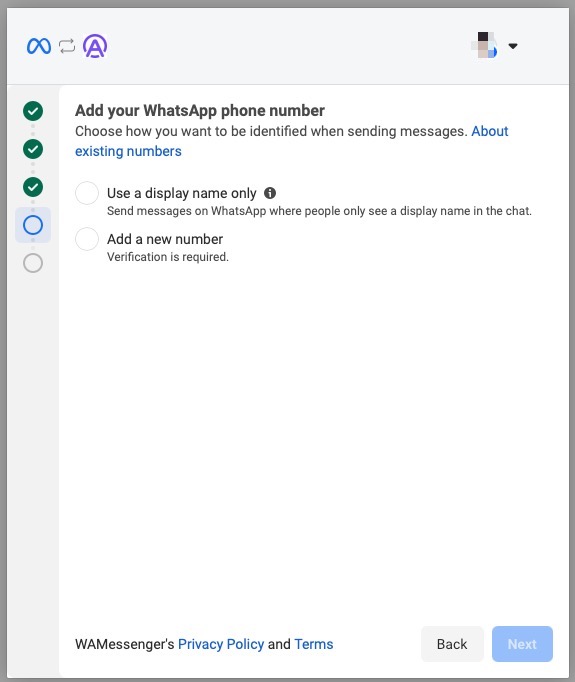
Add your WhatsApp Phone Number. You can choose to either use a display name only or add a new number. Click Next.
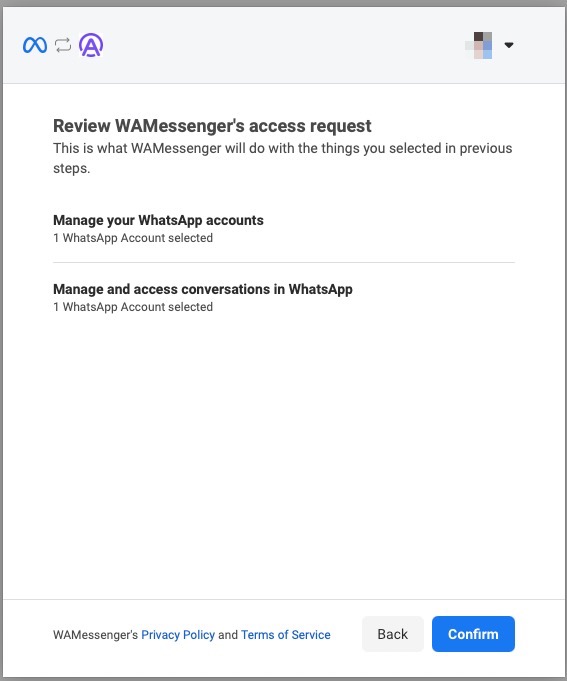
Review WAMessenger's access request. Click Confirm.
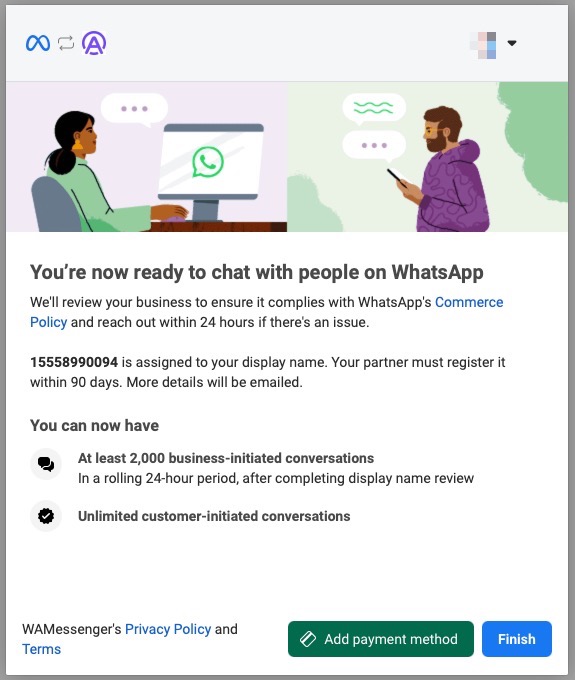
You will be assigned a number (if you selected display name only) or you will see your WhatsApp Number. You can add a payment method here to avoid disruption of your WhatsApp services after the free messages. Click Finish.
Back in Easy Assist AI, you will see "WhatsApp Authorization Successful!"
✅ Once enabled, messages sent to your WhatsApp number should route to the chatbot.
How users will start a WhatsApp chat (common methods)
You can drive users into WhatsApp using:
A) Click-to-Chat link
Example format:
https://wa.me/<countrycode+number>Or a pre-filled message link:
https://wa.me/<number>?text=Hi%20I%20want%20to%20book
B) QR code
Create a QR code pointing to your wa.me link and place it on:
posters, receipts, flyers, packaging, business cards
C) Website button
Add “Chat on WhatsApp” CTA that opens WhatsApp chat.
Recommended bot setup for WhatsApp (best practice)
1) Keep responses short and clear
WhatsApp users expect fast, mobile-friendly replies.
2) Enable Lead Capture
Go to Leads → Lead Form, enable:
First Name
Phone number (WhatsApp already has phone context, but capturing can still help)
Email (optional but useful)
3) Add intent-based quick prompts in your bot
Have the bot ask:
“Would you like Pricing, Booking, or Support?”
This reduces wandering chats.
4) Add booking triggers (optional)
If you use Appointments:
include triggers like:
“Book”
“Schedule”
“Appointment”
“Demo”
“Consultation”
Testing checklist (important)
To test properly:
Use a different phone number (not the same admin account if possible)
Send a WhatsApp message:
“Hi”
“How much?”
“Book an appointment”
Confirm:
The chatbot replies
Lead capture works
Booking triggers work (if enabled)
Troubleshooting
The integration connects but messages don’t reply
Confirm WhatsApp integration is Enabled and saved
Check you authorized the correct Meta Business account
Make sure the correct phone number is attached (if there’s a selection step)
Ensure no other WhatsApp automation tool is connected to the same number
I don’t see my WhatsApp number as an option
The number may not be added to your WhatsApp Business Account (WABA)
You may not have admin permissions in Meta Business Manager
The number may already be used in another WhatsApp API setup
I keep seeing “Reconnect to WAMessenger?”
This usually means you’re re-authorizing a previously connected integration
Click Edit previous settings to ensure the correct assets are selected, then Reconnect
Return to Easy Assist AI and click Save/Enable
Best use cases for WhatsApp Integration
Beauty & aesthetic clinics: promos, price list, booking
Home services: quotes, scheduling, location dispatch
Real estate: inquiries, viewings, availability
Ecommerce: product questions, order updates
Agencies: discovery questions, lead qualification