


Instagram Integration Help Guide
The Instagram Integration connects your Easy Assist AI chatbot to your Instagram Direct Messages (DMs) so customers can message your Instagram account and receive automated replies—24/7—using your chatbot’s knowledge, lead form, and booking triggers.
Where to find it:
My Chatbots → (Select a Chatbot) → Integrations → Instagram
What Instagram Integration does
Replies to Instagram DMs automatically using your chatbot
Helps you qualify leads (collect name/email/phone) inside chat
Can trigger Appointments (if enabled) when users ask to book
Reduces missed inquiries from IG traffic (ads, reels, profile link)
Requirements (before you connect)
To connect Instagram messaging, you usually need:
Instagram Professional Account
Your Instagram must be set to Business or Creator (not personal).
Linked Facebook Page
Your Instagram account must be linked to a Facebook Page (via Meta Accounts Center / Business Suite).
Correct Permissions
You must log in with the Facebook/Meta account that has Admin access to the Facebook Page (and connected Instagram).
Instagram Messages allowed
In Instagram settings, make sure the account can receive message requests normally.
How to connect Instagram (step-by-step)
Go to Integrations → Instagram
Click Instagram Authorization
Log in to the correct Instagram or Facebook/Meta account
When Meta asks for permissions:
Select the correct Facebook Page
Allow access to the connected Instagram account
Allow access to messages, View profile and access media, and Access and manage messages. Click Allow.
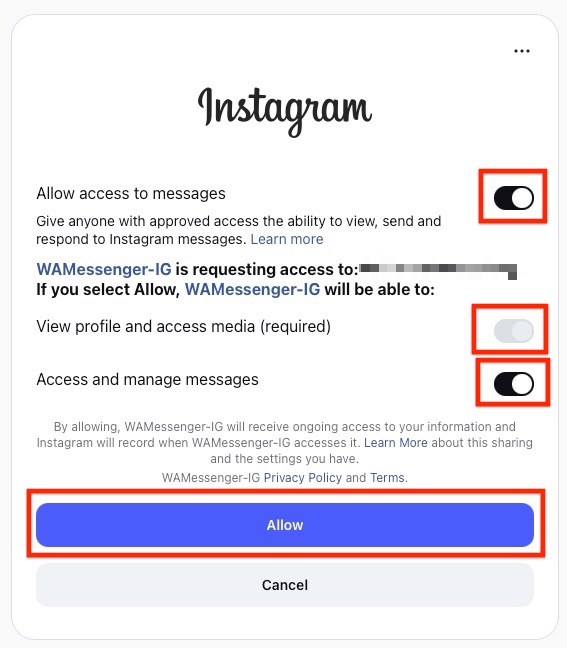
Back in Easy Assist AI, you will see that Instagram authorization successful! message.
Send a test DM to your Instagram account from another IG account:
“Hi”
“Price?”
“Book a demo”
✅ If successful, the bot replies inside Instagram DMs.
Recommended setup (best practice)
A) Add DM trigger phrases (so booking + lead capture works)
Make sure your bot handles common IG phrases:
“How much?”
“Price list”
“Book”
“Schedule”
“Where are you located?”
“Do you have promos?”
B) Enable Lead Form (for real conversions)
Go to Leads → Lead Form and enable at least:
First Name
Email
(Optional: Phone number)
C) Use Live Chat for hot leads
If you have Live Chat, add a bot option:
“Type ‘agent’ if you want to talk to a human.”
How to test properly (important)
Test using a different Instagram account (not the same one you used to connect).
DM your business IG: “Hi”
Ask a pricing question: “How much is your service?”
Ask to book: “Can I book a demo?”
Check:
Does the bot reply?
Does it ask for lead details (if enabled)?
Does booking trigger (if Appointments is enabled)?
Troubleshooting
I can’t see my Instagram account to select
Common causes:
Instagram is still personal → switch to Business/Creator
Instagram is not linked to a Facebook Page
You’re logged into the wrong Facebook account (no admin rights)
Fix:
Link IG to a Facebook Page in Meta Business Suite / Accounts Center
Reconnect using the correct admin account
Integration says connected, but the bot doesn’t reply
Try:
Ensure the integration is Enabled and click Save
Disconnect and reconnect (re-authorize)
Confirm your Instagram account can receive DMs normally
Test with a new conversation thread (sometimes old threads behave differently)
Replies are inconsistent or delayed
Possible causes:
Multiple tools are connected to Instagram (conflicts)
Too many automations or heavy prompts
Fix:
Keep one primary responder (avoid multiple IG automation tools at once)
Simplify the bot’s first response for IG (short and direct)
Best use cases for Instagram Integration
Beauty/Aesthetics: price list, promos, booking consults
Real estate: property inquiries, viewing schedule
Agencies: package matching, quote requests
Ecommerce: product questions, order help
Local services: location, availability, booking