


Facebook Messenger Integration Help Guide
The Facebook Messenger Integration connects your Easy Assist AI chatbot to a Facebook Page, so customers can message your Page on Messenger and receive automated replies from your chatbot—just like website chat.
Where to find it (typical path):
My Chatbots → (Select a Chatbot) → Integrations → Facebook
What this integration does
Lets your chatbot reply to Messenger conversations from your Facebook Page
Captures leads the same way (if your Lead Form is enabled)
Reduces response time and keeps your Page responsive 24/7
Before you start (requirements)
You need:
A Facebook Page (not just a personal profile)
Admin access (or full permissions) to that Page
Ability to log in to the Facebook account that manages the Page
Optional but recommended: Meta Business Suite access if your Page is managed through Business Manager
How to connect Facebook Messenger (step-by-step)
Go to Integrations → Facebook
Click Facebook Authorization
Log in to Facebook when prompted
Allow to connect or reconnect to WAMessenger.
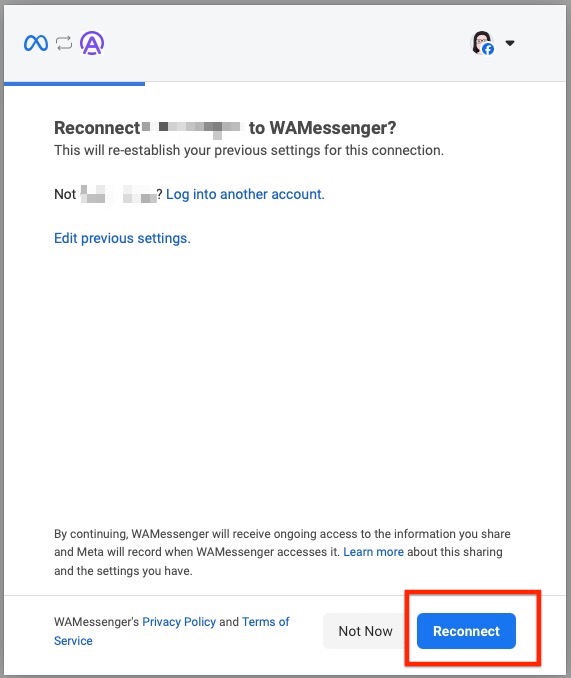
If your Page is already connected to WAMessenger before and would like to connect another Page, click "Edit previous settings". This will allow you to choose the Pages you want WAMessenger to access. You can either select "Opt in to all current and future Pages" or "Opt in to current Pages only." If "Opt in to current Pages only" is selected, you need to select the Page you want your chatbot to connect. After selection, click Continue.
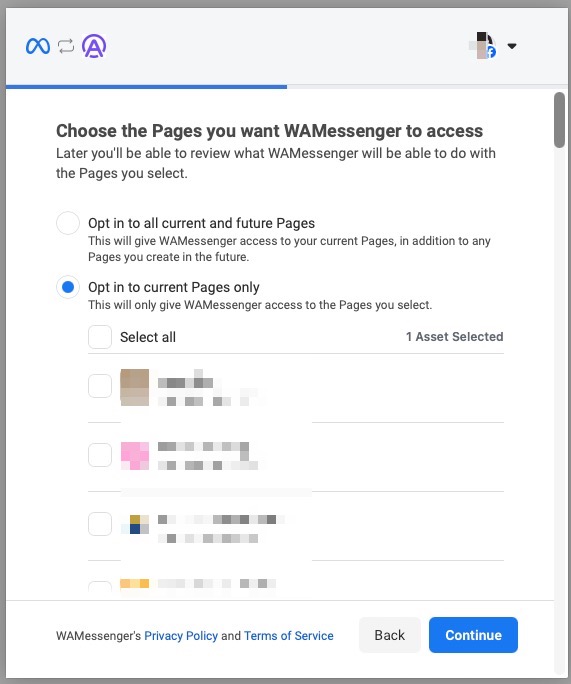
If this is the first time you will connect a Page to WAMessenger, Facebook will asks for permissions:
Allow access to the Page(s) you want to connect
Accept required permissions so the bot can send/receive messages
Choose the Businesses you want WAMessenger to access. Click Continue.
Review WAMessenger's access request and click Save.
You will get a message that you has been connected to WAMessenger. Click Got it.
Back in Easy Assist AI, you will see that Facebook authorization successful! message.
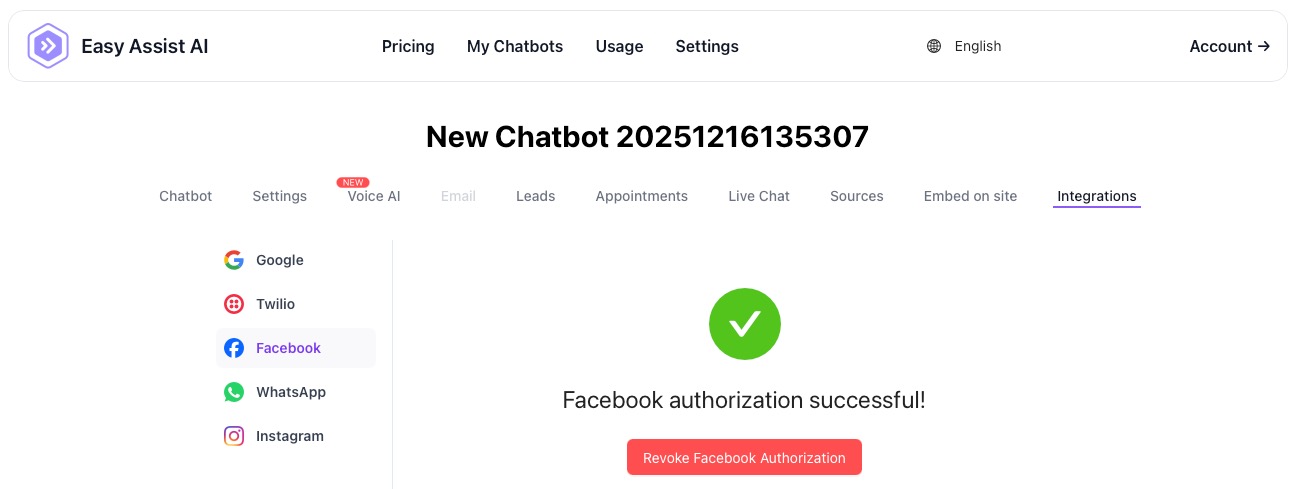
✅ Once successful, Messenger messages sent to your Page should route to your chatbot.
Recommended configuration (best practice)
A) Set expectations for users
In your chatbot welcome message (or Messenger greeting if available):
“Hi! We usually reply instantly here. How can we help—pricing, booking, or support?”
B) Use “handoff” for complex cases
If you use Live Chat:
Add a trigger like “Talk to a human” / “Live agent”
C) Enable Lead Capture
Go to Leads → Lead Form and collect at least:
Name + Email (and Phone if you want appointments/callbacks)
How to test the integration
Open your Facebook Page
Click Message
Send a test message like:
“Hi”
“How much is it?”
“Book a demo”
Confirm:
The chatbot replies
Lead capture triggers correctly (if enabled)
Appointment triggers work (if enabled)
Tip: Test from a different Facebook account (not the Page admin) for a real customer experience.
Common troubleshooting
The “Connect” button fails / no Pages show
Make sure you’re logged into the Facebook account that has Admin access to the Page
Try switching accounts in Facebook, then retry integration
If the Page is under Business Manager, ensure you have full permissions in Meta Business settings
The bot is connected but not replying
Confirm the integration is Enabled and you clicked Save
Check if another tool/platform is also connected to Messenger (conflicts can happen)
Send a brand-new message thread (sometimes old threads behave differently)
Replies are delayed or inconsistent
Confirm your Page is not restricted and can receive messages normally
Reduce “heavy” automations (too many triggers) and keep responses direct
Test multiple message types (short vs long)
Customers complain the bot isn’t helpful
Add quick-reply style prompts:
“Type 1 for Pricing, 2 for Booking, 3 for Support”
Ensure your knowledge base / Sources are updated
Security & privacy notes
Messenger conversations may include personal information. Only allow trusted team members access to your Easy Assist AI account.
If you collect contact details, make sure you have a valid Privacy Policy link in Lead Form.
Best use cases for Messenger integration
Beauty & aesthetics clinics (pricing, schedule, promos)
Real estate inquiries (location, budget, viewing schedule)
Agencies (services, packages, lead qualification)
Ecommerce (order status, FAQs, returns)
Local services (quote requests, booking)