


Sample of a chatbot embed script.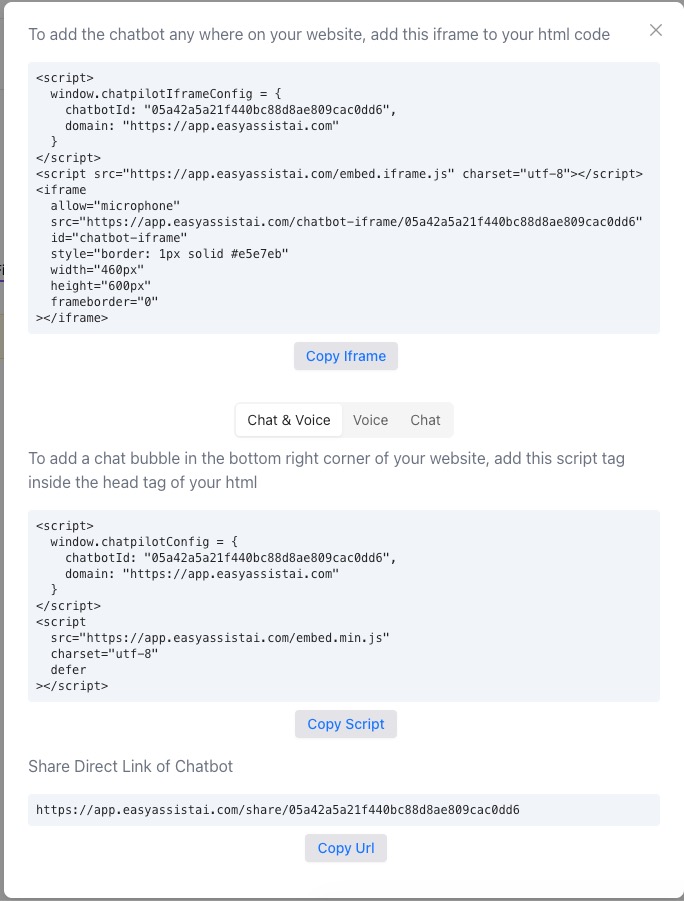
Embed on Site Help Guide
The Embed on Site page gives you everything you need to publish your chatbot on your website—either as an inline iframe, a floating chat bubble, or a direct share link.
Where to find it:
My Chatbots → (Select a Chatbot) → Embed on Site
Embed options available
1) Inline Embed (Iframe) — “Add the chatbot anywhere on your website”
Use this if you want the chatbot to appear inside a page section (like Contact, Pricing, or Support).
What you’ll see:
A code block containing:
a config script (
window.chatpilotIframeConfig)an embed loader script (
embed.iframe.js)an
<iframe>with width/height settings
A Copy iframe button
Best for:
Contact pages
Help center pages
Landing pages (below pricing or FAQ)
2) Floating Chat Bubble — “Bottom-right corner chat bubble”
Use this if you want the classic website chat widget that follows users across pages.
What you’ll see:
A code block containing:
a config script (
window.chatpilotConfig)an embed script (
embed.min.js)
A Copy Script button
Best for:
Most websites (highest usability)
Lead capture + instant support
Always-on sales assistant
3) Share Direct Link — “Share Direct Link of Chatbot”
Use this link to share your chatbot without embedding it on a website.
What you’ll see:
A direct URL (share link)
A Copy Url button
Best for:
Sending to clients via Email
Testing the bot quickly
Linking from social media or QR codes
Chat & Voice toggle (Chat & Voice / Voice / Chat)
If your chatbot supports voice, you can choose what users will see:
Chat & Voice: shows both options
Voice: voice-only experience
Chat: chat-only experience
Tip: If you don’t want microphone prompts, choose Chat.
How to embed (step-by-step)
A) Add as an inline section (Iframe embed)
Open Embed on Site
Select Chat, Voice, or Chat & Voice
Click Copy iframe
Paste the code into your page where you want the bot to appear:
inside the
<body>of your HTMLinside a “Custom HTML” block in a page builder
Publish your page
Adjust size (optional):
Change
width="460px"andheight="600px"to fit your layout
B) Add as a floating chat bubble (Script embed)
Open Embed on Site
Select Chat, Voice, or Chat & Voice
Click Copy Script
Paste the script inside the
<head>section of your website (recommended)Publish
Tip: Add it once globally (site-wide header) so the bubble appears on all pages.
C) Share the chatbot link
Open Embed on Site
Copy the link under Share Direct Link of Chatbot
Send it to customers or use it in buttons/QR codes
Platform-specific placement tips (common)
WordPress
Chat bubble: Appearance → Theme File Editor →
header.php(before</head>)
OR use a header/footer script plugin.Iframe: Add a “Custom HTML” block in the page editor.
Shopify
Chat bubble: Online Store → Themes → Edit code →
theme.liquid(before</head>)Iframe: Add to a page template or “Custom Liquid” section.
Webflow / Squarespace / Wix
Look for:
Site-wide header / Custom code in Head (for chat bubble)
Embed/Code block (for iframe)
Troubleshooting
The chatbot doesn’t show up
Make sure you pasted the code in the right place:
Script (bubble): in the
<head>Iframe: in the page body/content area
Clear cache and hard refresh (
Ctrl/Cmd + Shift + R)Confirm you pasted the full code (both config + script)
The chat bubble appears, but doesn’t open / loads blank
Check if your site has strict Content Security Policy (CSP) rules that block external scripts/iframes.
Try allowing scripts/frames from:
https://app.easyassistai.com
Voice isn’t working
Voice mode needs microphone access.
Make sure your site is on HTTPS.
In iframe mode, the iframe includes
allow="microphone"—don’t remove it if you want voice.
The iframe is too big/small on mobile
Reduce the iframe width/height
Or place it inside a responsive container on your site (common in page builders)
Best practices (recommended setup)
Use the chat bubble for most websites (best conversion + least friction)
Use the iframe on a dedicated “Contact / Support / Book a Demo” page
Keep Chat-only if you want a simple experience without voice permissions
Test after publishing:
Desktop + mobile
Incognito mode (to avoid caching)