


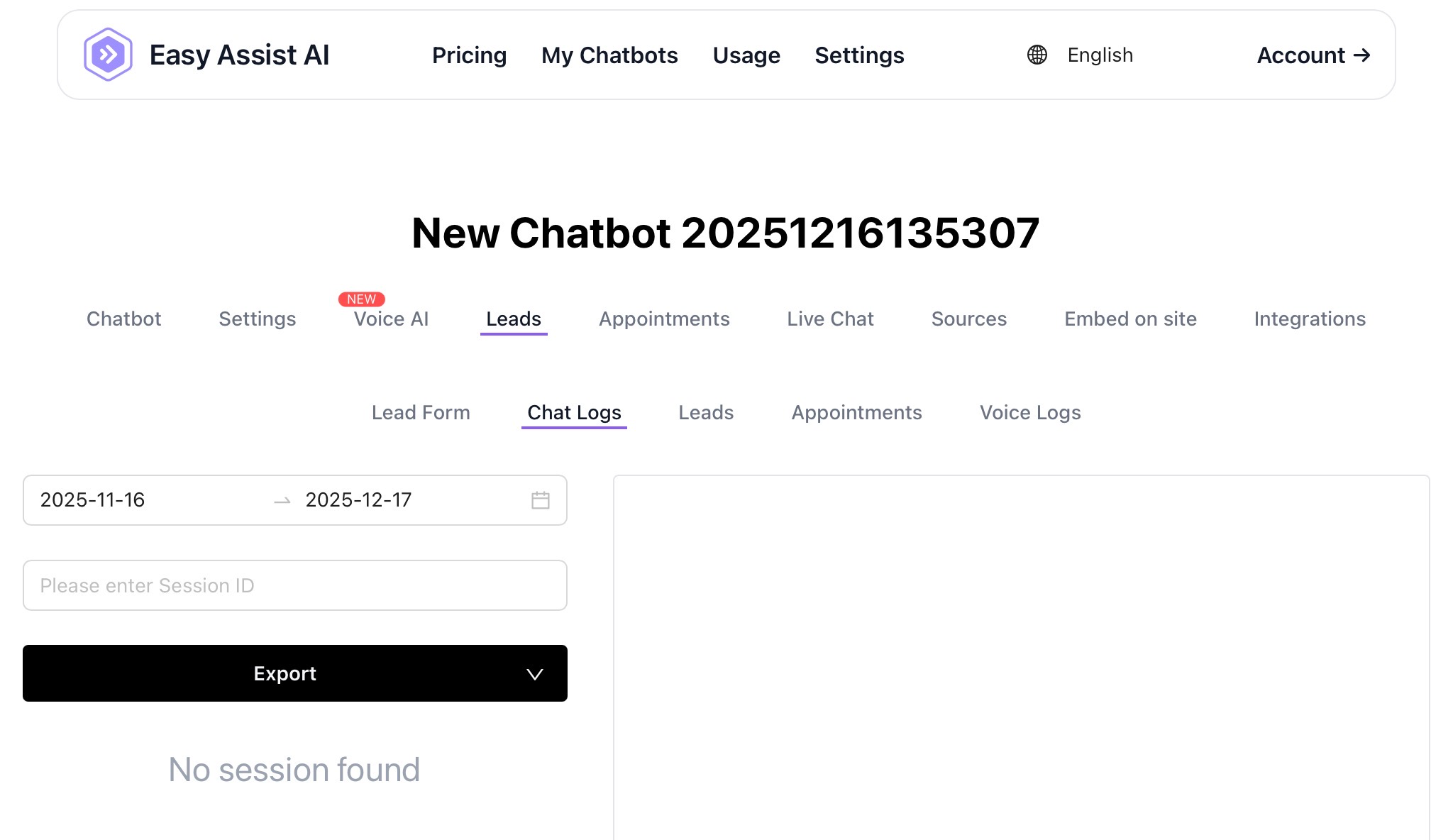
Chat Logs Help Guide
The Chat Logs page lets you review past chatbot conversations by date range or Session ID, so you can troubleshoot, monitor performance, and follow up on leads.
Where to find it:
My Chatbots → (Select a Chatbot) → Leads → Chat Logs
What you can do in Chat Logs
View conversation sessions (each chat has a unique Session ID)
Filter chats by a date range
Search a specific chat using Session ID
Export chat logs for reporting or review
Page overview (what each part means)
1) Date Range Filter
Located at the top-left (two date fields with a calendar icon).
What it does:
Shows chat sessions that happened within the selected start and end dates.
How to use:
Click the start date and end date.
Choose the dates from the calendar.
The results area will update (or will show “No session found” if none match).
Tip: If you’re not seeing logs, expand the range (e.g., last 30–90 days).
2) Session ID Search
The input field below the date range: “Please enter Session ID”
What it does:
Searches for one specific chat session when you paste the Session ID.
Best practice:
Paste the Session ID exactly (no extra spaces).
Use this when a customer reports an issue and you need the exact chat.
3) Export (Dropdown Button)
The large Export button with a small dropdown arrow.
What it does:
Exports the filtered chat logs (based on your date range and/or Session ID).
How to use:
Set your date range (and/or paste a Session ID).
Click Export.
If options appear, choose the export format (commonly CSV/Excel depending on your setup).
Tip: Export after filtering so you only download what you need.
4) Results / Conversation Viewer
The large area on the right is where sessions or conversation details display.
Blank state:
If there are no matches, you’ll see “No session found.”
Common workflows
A) Find chats from a specific day
Set the date range to that day (same start and end date).
Check the results area.
Export if needed.
B) Investigate a reported issue using Session ID
Paste the Session ID in the search field.
Confirm the date range includes the session date (widen it if unsure).
Review the conversation for errors, user intent, or missing information.
C) Download chat logs for reporting
Set date range (e.g., last 7 days).
Click Export and select the format.
Use the export for analysis (volume, common questions, conversion points).
Troubleshooting
“No session found”
Try these quick fixes:
Widen the date range (most common cause)
Clear the Session ID field (in case it’s limiting results)
Confirm the chatbot is embedded and receiving traffic
Make sure you’re viewing the correct chatbot in “My Chatbots”
I entered a Session ID but nothing shows
Verify the Session ID is correct (copy/paste again)
Remove any leading/trailing spaces
Expand the date range in case the session date is outside your filter
Export doesn’t include what I expect
Exports usually follow your current filters (date range + Session ID).
Re-check filters before exporting.
Privacy reminder
Chat logs may contain personal data (name, email, phone, messages). Limit access to authorized staff and avoid sharing exports publicly.