


Live Chat Help Guide
Live Chat lets a human agent “step in” and chat with the website visitor in real time—useful for high-intent leads, complex questions, and closing sales. When Live Chat is enabled, you can start a live session from the dashboard and take over the conversation from the bot.
Where to find it:
My Chatbots → (Select a Chatbot) → Live Chat
What Live Chat does
Let's you switch from AI chatbot → human agent
Shows a clear message to the visitor when a human joins (“step-in”)
Shows a clear message when the human leaves (“step-out”)
Helps you handle:
Pricing negotiations
Custom requests
Sensitive/complex concerns
Hot leads ready to buy/book
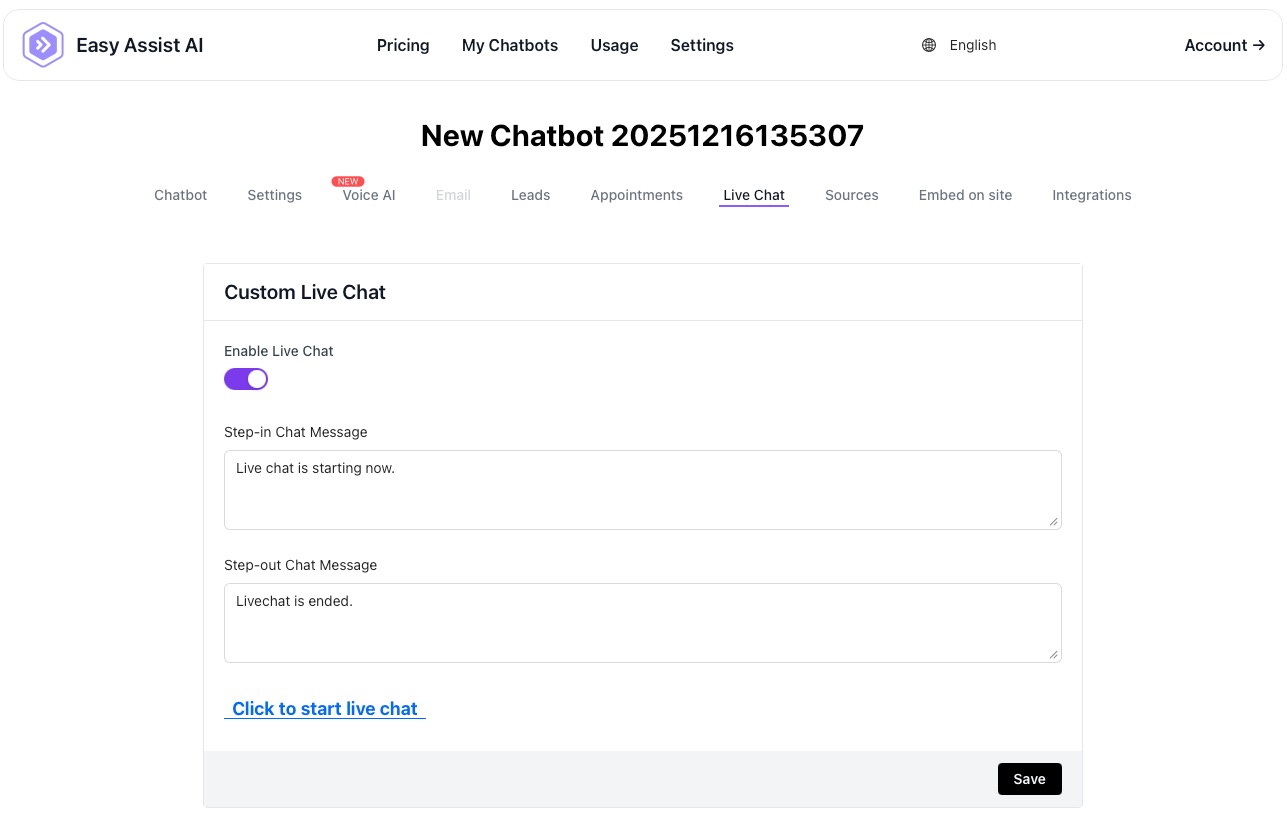
Page overview (what each part means)
1) Enable Live Chat (toggle)
ON: Live Chat can be used for this chatbot.
OFF: Live Chat is disabled (no human handoff).
Tip: Turn this ON if you want the option to jump into chats.
2) Step-in Chat Message
This is the message the visitor sees when you start Live Chat (human takeover).
Default example:
“Live chat is starting now.”
Recommended (more friendly + clear):
“Hi! A team member just joined the chat 😊 How can we help you today?”
“Thanks for waiting—our staff is here now. What can we assist you with?”
Best practice: Set expectations if needed:
“We’re here now—reply anytime. Typical response: 1–2 minutes.”
3) Step-out Chat Message
This is the message the visitor sees when Live Chat ends (handoff ends).
Default example:
“Livechat is ended.”
Recommended (more professional):
“Thanks for chatting! If you have more questions, just message here anytime.”
“We’re stepping away for now, but the chatbot can still help—or leave your email and we’ll follow up.”
4) “Click to start live chat” (link/button)
Starts a Live Chat session (human agent steps in).
When clicked:
The Step-in message is sent to the visitor
You can begin responding as the human agent
5) Save
Always click Save after editing messages or toggling Live Chat.
How to use Live Chat (basic workflow)
Go to Live Chat tab
Turn Enable Live Chat ON
Customize Step-in and Step-out messages
Click Save
When you’re ready to take over: click Click to start live chat
Chat with the visitor
End the session when done (the Step-out message will be shown)
Recommended message templates (copy/paste)
Step-in message (choose one)
Option A (friendly + fast)
Hi! A team member just joined the chat 😊 How can we help you today?
Option B (sales/booking focused)
Hello! We’re here live now. Would you like pricing, a quick demo, or help booking?
Option C (support focused)
Hi! Support is here now. Tell us what issue you’re experiencing and we’ll assist.
Step-out message (choose one)
Option A (keep it open)
Thanks for chatting! If you need anything else, message us here anytime.
Option B (capture follow-up)
Thanks! We’re stepping away for now. Leave your email/phone and we’ll follow up shortly.
Option C (handoff back to bot)
Thanks for your time! The chatbot can still help with quick questions—just type your concern anytime.
Best practices (to increase conversion)
Use Live Chat only for high-intent moments:
“How much is it?”
“Can I book a demo?”
“Do you support X integration?”
Aim to reply within 1–2 minutes once you step in
End with a clear next step:
“Would you like me to book a call?”
“Can I send the proposal to your email?”
“Which package are you considering?”
Troubleshooting
Live Chat isn’t working
Make sure Enable Live Chat is ON
Click Save
Refresh the page and try again
Visitor doesn’t respond after you step in
Your Step-in message may be too generic—make it actionable:
“Would you like pricing, demo, or support?”
Ask a direct question to guide them.
Step-out message looks unprofessional
Update it and save (use the templates above).